Fly In Canada
Interactive Aviation Map

What's New
Feb, 2021
There is no longer enough interest in this site so I decided to decommission it. The flyincanada.ca domain was cancelled
and the webpage was moved under my main programming site where it will remain as an example.
The site is no longer being updated.
About
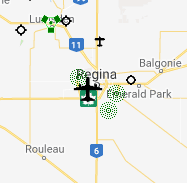
Fly in Canada.ca is a visual representation of selected elements in the current Canada Flight Supplement (CFS), along with upcoming aviation events submitted by users. It includes numerous tools to assist pilots, or to educate those interested in aviation. This web page is intended to give you a quick visual overview of Aerodromes, Nav Aids and Events across Canada, as well as help with flight planning. The program contains a lot of information and can do many things... but there still many things it doesn't show, so please keep in mind this tool is a supplement to official charts and documentation, to a replacement. (For more information see the disclaimer section.)
Features of the Map Include:
- Over 2000 aviation markers with detailed information.
- Over 700 airport diagrams.
- Nav Aid ident audio.
- Multi leg distance measurement.
- Lat/Long tools including format conversion.
- Flight planning with automatic distance, heading and magnetic variation.
- Ground speed and wind correction angle calculator.
- Country wide FISE radio coverage map, by altitude.
- Flight route animations.
- Country wide aerodrome locator.
- Visual crosswind calculator.
Performance: When lots of markers are on the screen at one time, navigation becomes sluggish. To improve preformance, either zoom in, or hide markers that you aren't interested in.
Compatibility: Although the map will run on a smart phone, a tablet or larger is recommended. The best performance seems to be on a PC running Google Chrome.
Internet explorer has officially reached the end of its life and no longer supports anything but the most basic webpages. If you use IE, please upgrade to something more modern.
Safari works fine, but Apple uses a different way of processing sound files, and as a result Nav Aid Morse code has extra delays between tones.
Tool Bar

In order to make the program more user friendly, the previous system of sub menus has been replaced with one quick access Tool Bar. This allows the user a quick transition
between the different functions. Now Searching for airports, selecting them to make your flight plan, opening the nav log etc... Can be done very quickly. The Map can be used
to verifying your calculations in multi-leg route in a matter of seconds.
On small screens, the Tool Bar still exists but only the icons are present.
Show Window

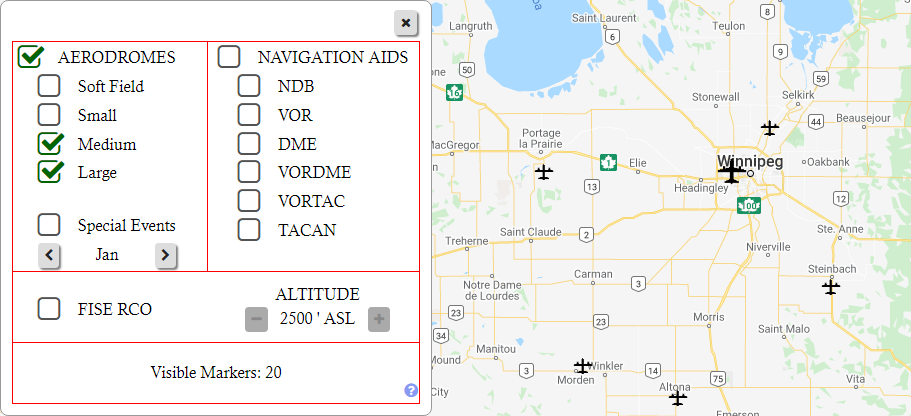
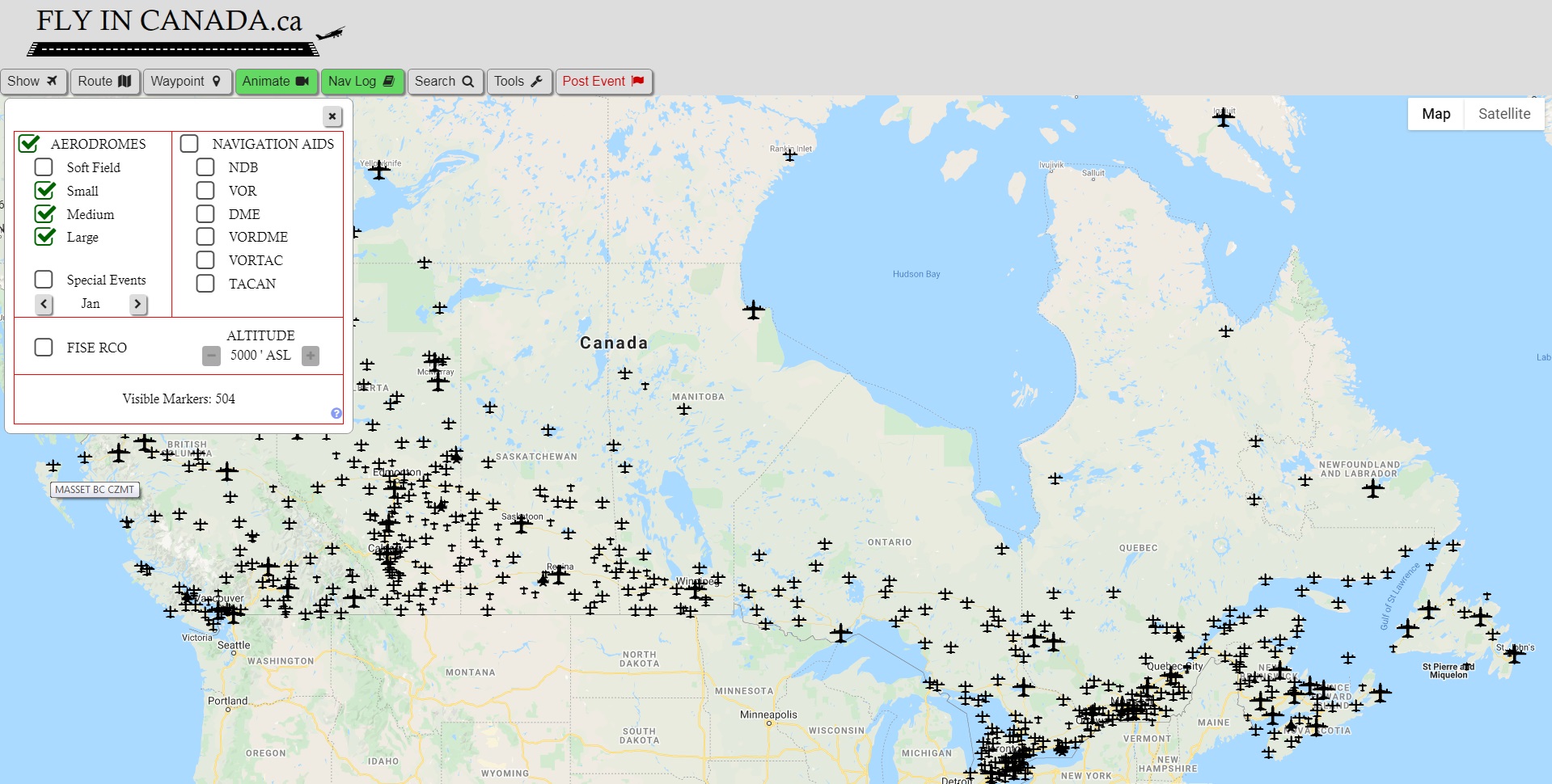
Pressing the Show button brings up a window that allows you to display or hide different Marker categories.
Because of the number of markers in the database, this screen is very handy.
Not only does hiding markers remove the clutter, making it easier to find
what you are looking for, it also improves performance when navigating. When large
numbers of markers are on the screen at one time, each time you pan the screen,
every one of those markers has to be redrawn by the browser.
Aerodrome Markers
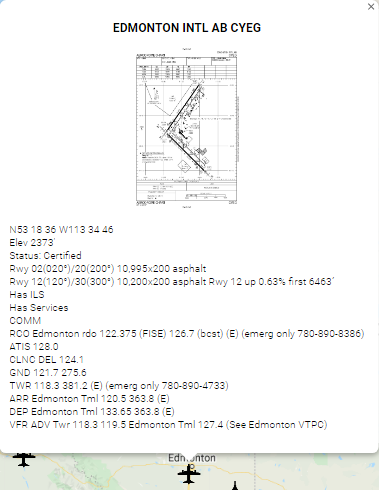
When you hover the mouse pointer over a marker, the aerodrome name and ident will be displayed. Clicking on the marker will bring up a window displaying
the aerodrome diagram (if present) and detailed information including Lat/Long, elevation, runway information, communication frequencies etc.
The aerodrome diagram will be displayed if it is found in the latest Canadian Airports Charts Publication (Approx 700 Canadian Airports). This is published every 56 days.
If you click on the image thumbnail, the images will be enlarged depending on the size of the device.
Aerodromes not published in the official Canadian Airports Publication MAY be displayed as well, but they will not be updated automatically
meaning the information might not be accurate. If this is the case, a note will be displayed stating this.
If you want the diagram for one of these smaller aerodromes displayed, click on the contact button and make a request. We will add it
within a couple business days.
Nav Aids

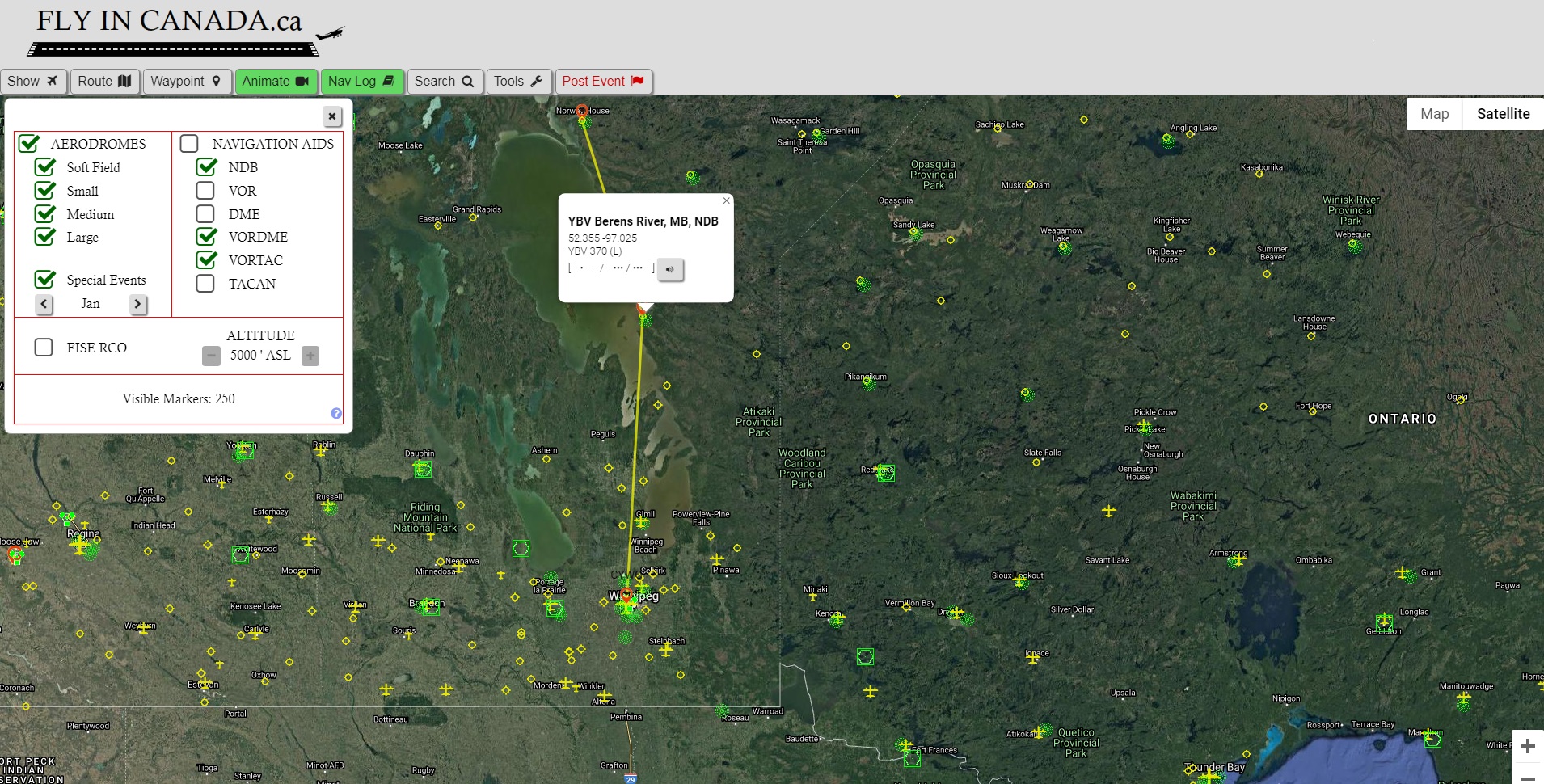
Nav Aids not only show the Morse code of the ident, but by clicking on the audio button you can
hear what it would sound like.
*Note there is an audio delay when using Safari as a browser. We may program a
work-around for this in the future.
Special Events
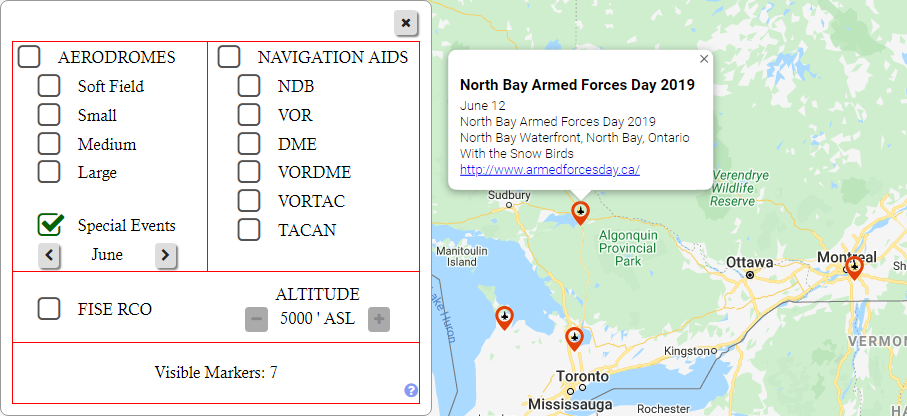
Special events include any aviation related event available to the public including air shows, fly in BBQs etc.
To view Special Events, Open the Marker select window and then click on the Special Events check box. Use the arrow buttons to select the month you want to view.
Special events are submitted by users. If you wish to submit an event, click on the Post Event button at the top of this page.
FISE RCO
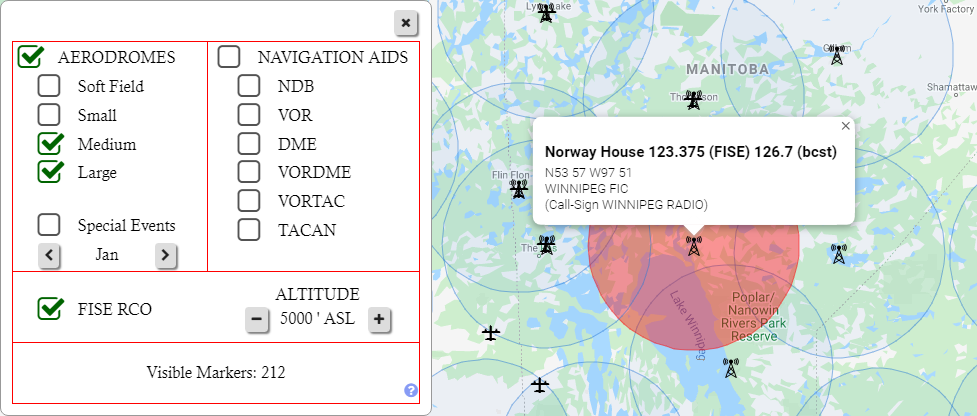
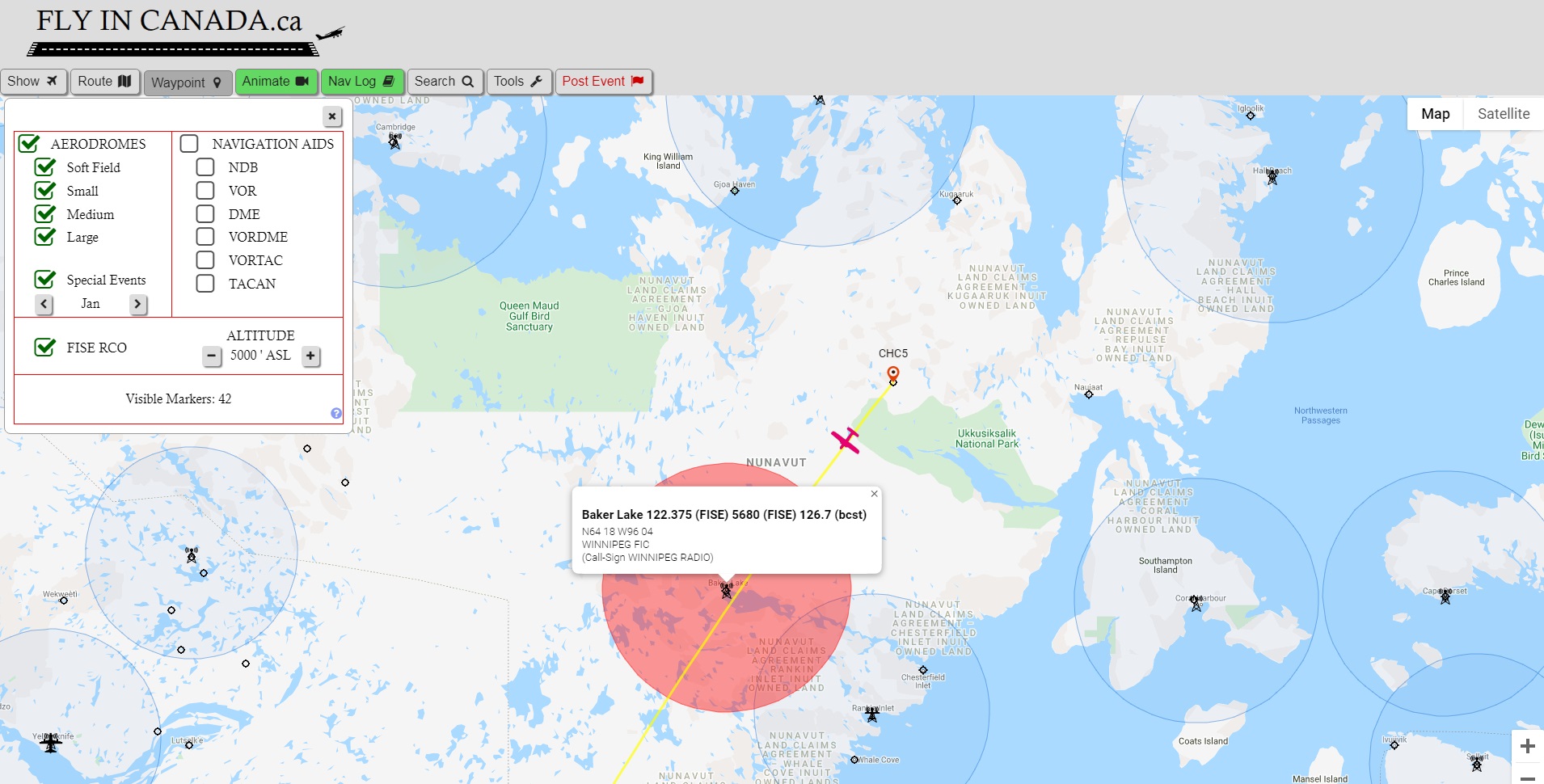
The new FISE RCO marker group not only shows all of the FISE frequencies in the country as of the latest CFS,
but also the approximate range for VHF radios based on your altitude. (Note this is only
for standard VHF radio frequencies ex 126.7 MHz, not HF frequencies, ex 5680kHz which would have a longer range.)
By selecting the altitude ASL, the approximate radio range is shown on the map. The range is
determined by:
Nautical miles = 1.25 X sqrt(height above ground level in feet), to a maximum 200NM. This
is the formula I go with, and it seems fairly accurate. Of course this is just an estimate and there are numerous factors
that can affect the actual range.
Seeing how the radio range increases as the aircraft
altitude increases is a good visual effect, especially for new pilots. For a typical altitude ASL, you will notice some sites have a smaller
radio range. This is because the site elevation is higher, making the height of the aircraft AGL smaller, therefore a
smaller radio range.
Clicking on the radio tower icon will show information about the frequency including the Flight Information Center you are speaking to and
their call sign.
Route Window
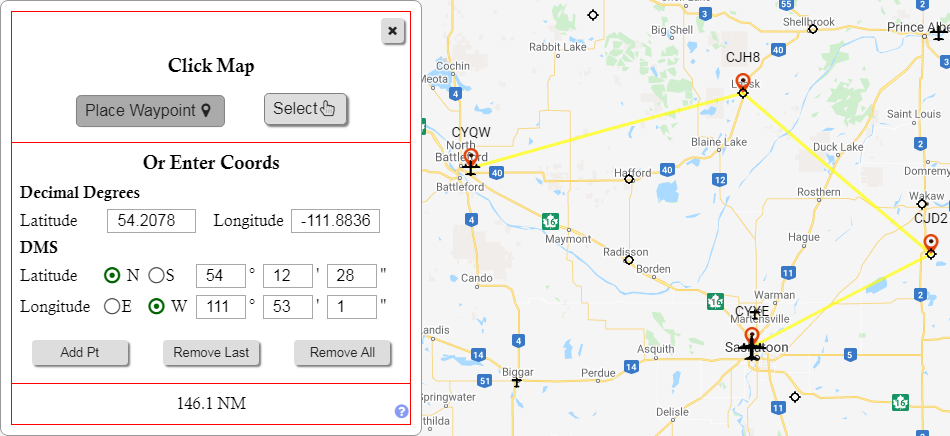
The Route Window allows the user the ability draw multiple way points on the map.
GPS coordinates are displayed above each waypoint and the total distance in NM is shown in the window.
New waypoints can be added one of two ways.
First way is to left clicking the map while in Waypoint mode. To enter this mode there is a "Place Waypoint"
button in the Route window, and for easy access there is a second "Waypoint" button on the main tool bar. When in Waypoint mode,
if a marker is selected it will become part of the planned route, otherwise when clicked the detailed information window for the site will be opened.
The second way to enter a waypoint is by manually entering in a GPS coordinates and then clicking "Add Pt" button.
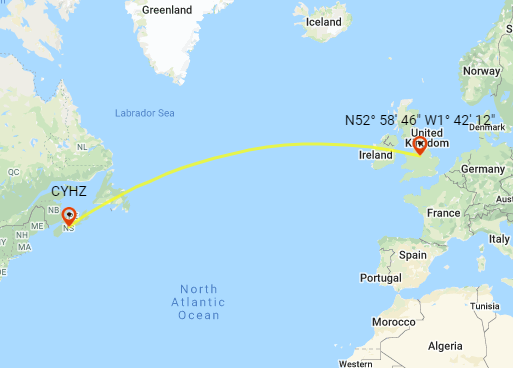
All routes are GREAT CIRCLE routes showing the direct distance on the globe. This is why the line appears curved. For those new to aviation, the curved route may seem longer, but in reality it is actually the shortest most direct route. This is the actual straight path you would be traveling if planned on a VNC or similar chart. The curved appearance is because a round earth is being displayed on a flat map.
Right clicking or pressing the "Remove Last" button removes the previous waypoint. Pressing the "Remove All" button removes all waypoints.
GPS Conversion Tool
The coordinates section of the Route Window also serves as a Latitude / Longitude conversion tool. By entering coordinates into either the
Decimal Degrees section, or the Degree / Minutes / Seconds section, the value will be automatically converted and displayed in the other section as well. Furthermore, once a minimum number of
digits are entered, the map will automatically center on your entered coordinates.
This tool along with the map's ability to display the coordinates of any waypoint placed on the map can be very handy.
Flight Animation
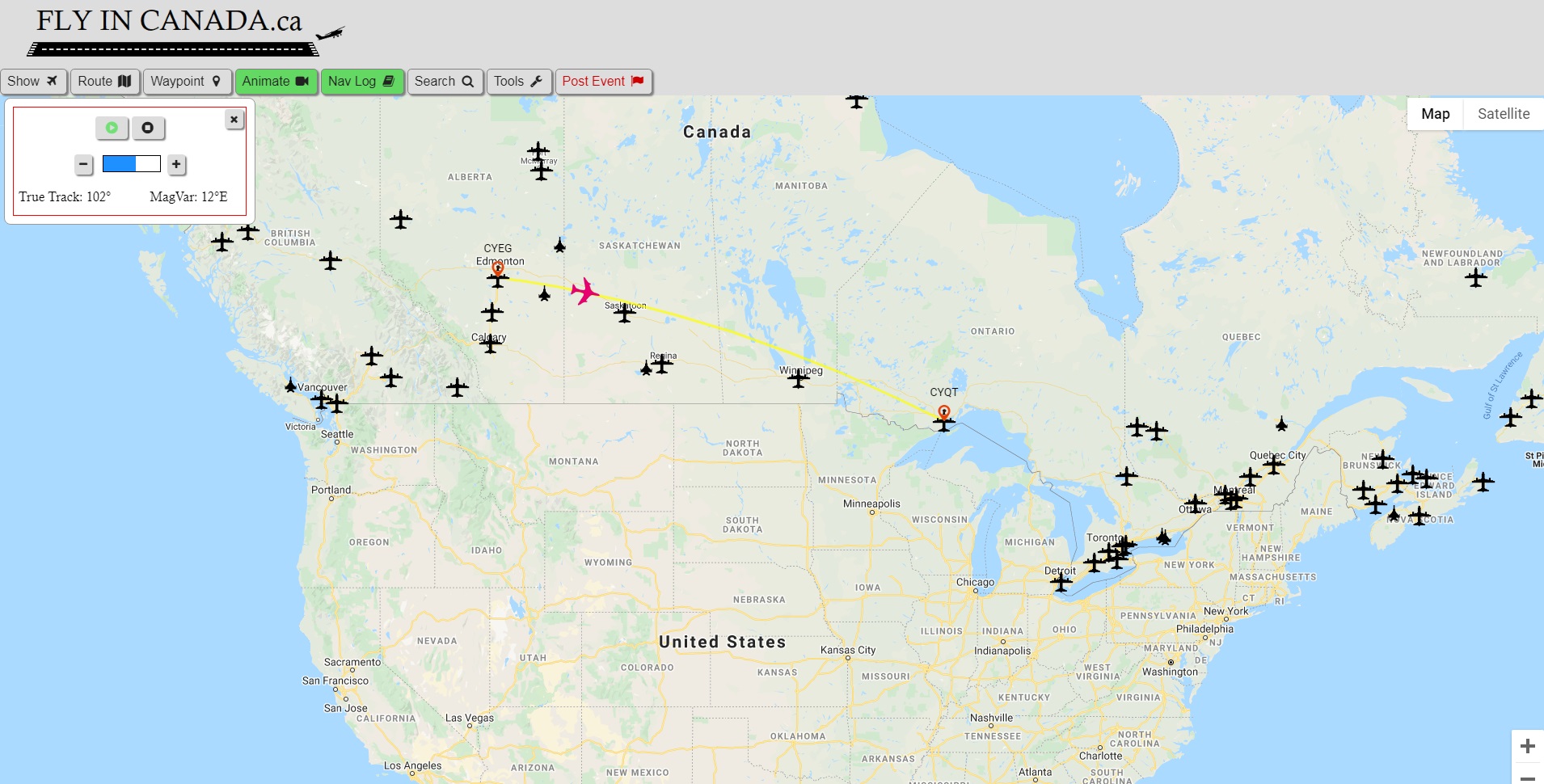
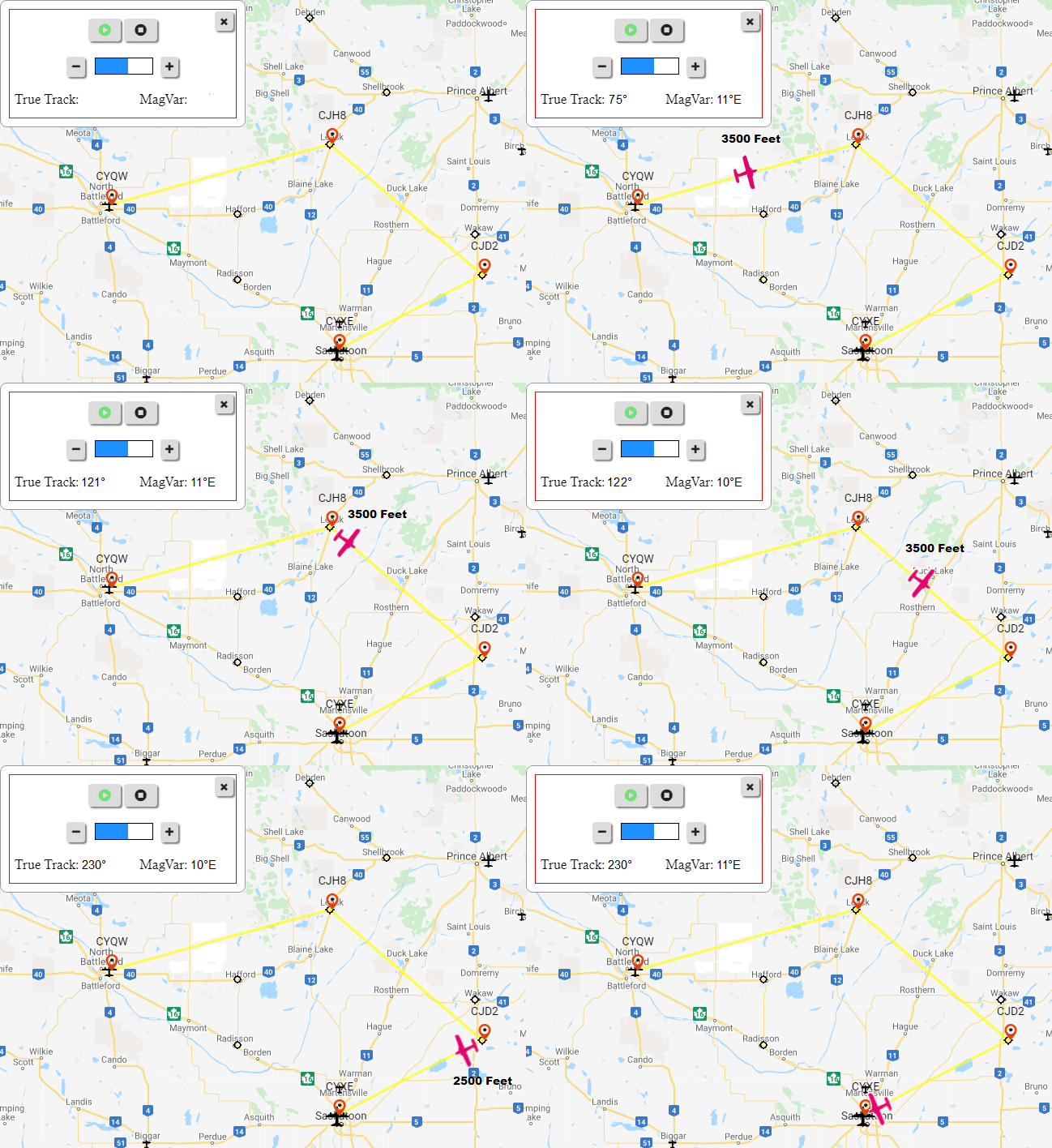
Once at least one flight leg has been drawn on the map, the Animation and Nav Log buttons become available.
The Animate button does just that, it plays an animation of flight, including true heading and magnetic variation at any given point, as well as altitudes if they have already been entered into the Nav Log.
The isn't the most useful thing to do, but it is a neat visual effect that also has an educational component, and kids like to it!
Nav Log
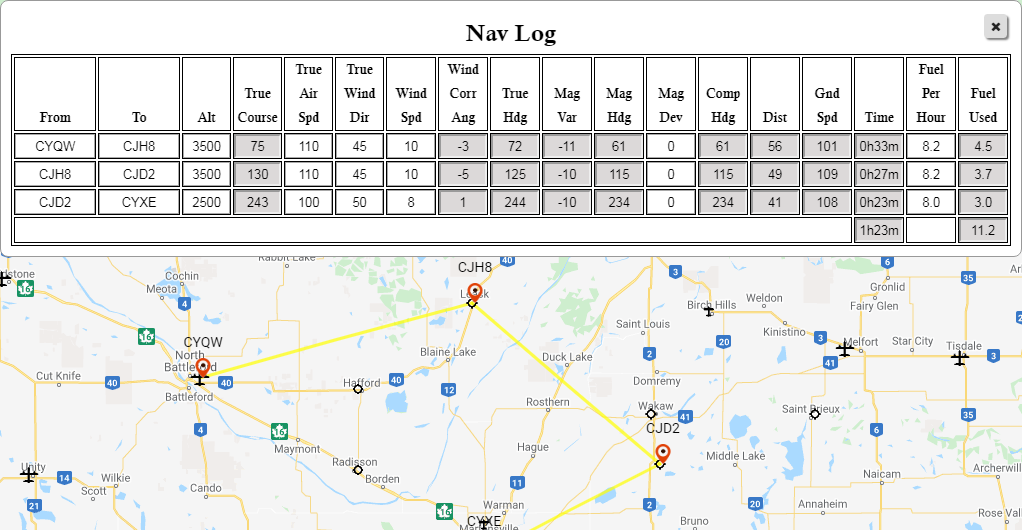
The Nav log becomes available once you have created at least one flight leg.
It's a standard enroute Nav Log with the added benefit that many fields are entered automatically. With this tool you can double check your paper
Nav Log in a matter of seconds.
The white fields are entered by the user. The grey fields are either automatically entered or calculated.
Airport Search Window
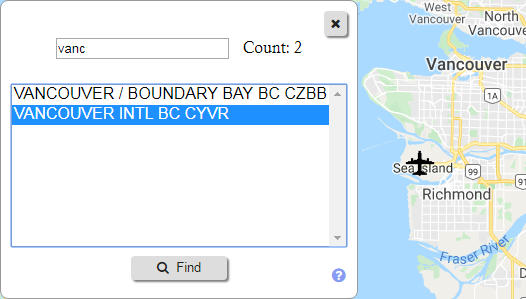
The Search Window can find any aerodrome in the CFS.
You can search by any text in the name including both aerodrome name and identifier.
Selecting an item will center map on its location. This function can be used in conjunction with the waypoint tool.
Visual Crosswind Calculator (Tools)

The crosswind calculator doesn't just calculator the wind components, it also gives you a helpful visual representation so you can actually see where the wind is coming from. The calculator is not only available within the map, it also has it's own web page for easy access. The link to the page is found at the top of this page under the Tools menu. The crosswind webpage can be bookmarked or added to your device's home screen for easy access.
Save Settings
The save button remembers the current area and zoom level for the next time you open the web page.
Opening display settings order:
- Saved Location and zoom level
- GPS location (if accepted) and medium zoom level
- Overview of Canada
Disclaimer
The Web Page is in no way associated with either Nav Canada or Transport Canada.
Our goal is to have current up to date information, which is why every couple months we completely empty, and then repopulate the database. Tens of thousands of data points are obtained through this automated process.
Although the process is reliable, with this amount of data mistakes can occur. For example, we have seen the rare instances of frequency numbers not aligning to the correct
service at a given airport.
Furthermore, to not overwhelm the user only selected pieces of information have been extracted from the CFS. Airspace, obstructions, procedures and other important information
required by a pilot is not present on this website. As per Canadian Air Regulations, Pilots are responsible for their own flight planning and must always use official and current charts and CFS.
By using this page, you agree that the webpage / owners are not responsible for any mistakes that may occur.
Therefore, it should be understood that this webpage is for educational and entertainment purposes only.
If you have any questions or suggestions please contact us via the contact form.
Additionally, the Aviation Map uses Google Maps and therefore if you choose to use the map you are also bound by the Google Maps Terms of Service.